
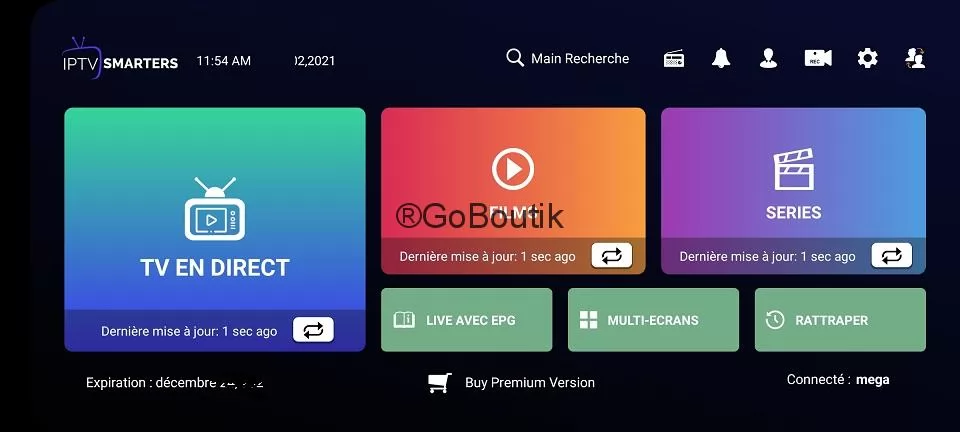
Android boxes have become a must-have if you want to get the most out of your streaming subscription. IPTV Smarters Pro is the reference application for transforming your TV into a multimedia entertainment center. Whether you're a beginner or a seasoned user, this comprehensive guide will take you through all the steps involved in configuring’IPTV Smarters Pro on your Android box.
More and more users are abandoning traditional TV solutions in favor of Internet streaming. This trend can be explained by the flexibility, variety of content available and substantial cost savings. With a properly configured Android box, you can access thousands of international channels, films, series and sporting events in high definition.
In this detailed tutorial, we explore the different methods of installing and configuring’IPTV Smarters Pro, Here you'll find all the information you need to get started, including best practices for optimization, as well as practical tips for improving your viewing experience. Whether you own a Xiaomi Mi Box, an NVIDIA Shield, an Amazon Fire TV or any other box running Android, the steps presented for installing IPTV Smarters Pro apply universally.
What is an Android Box and why use it for IPTV?
An Android box is a compact device that turns any TV with an HDMI port into a Smart TV capable of running applications, surfing the Internet and streaming multimedia content. These devices run on the Android operating system, identical to that used on smartphones, offering a familiar, intuitive interface.
Definition and benefits of an Android box
Android boxes stand out for their exceptional versatility. Unlike traditional set-top boxes limited to the provider's channels, these devices give you access to the entire Android ecosystem. You can install thousands of applications from the Google Play Store or via APK files, customize your interface to your preferences and even play video games.
There are several major advantages to using an Android box for your streaming service. Firstly, processing power enables smooth playback of high-definition content, including 4K for top-of-the-range models. Secondly, the Ethernet connection available on most models guarantees greater stability than a WiFi connection. Thirdly, these devices generally support multiple video and audio formats, ensuring maximum compatibility.
Compatible with popular IPTV applications
Android boxes excel in their ability to run various streaming applications. IPTV Smarters Pro naturally dominates the market thanks to its intuitive interface and comprehensive functionality. Other applications such as TiviMate, renowned for its elegant interface, GSE Smart IPTV, appreciated for its advanced features, Perfect Player, which appeals to users seeking simplicity, and Kodi, with its dedicated streaming extensions, complete the ecosystem. However, it's not all doom and gloom, IPTV Smarters Pro remains the preferred choice for millions of users worldwide.
Here's a table comparing the most popular Android boxes for streaming:
| Model | Processor | RAM | Storage | Approximate price | Ideal for |
|---|---|---|---|---|---|
| NVIDIA Shield TV Pro | Tegra X1+ | 3GB | 16GB | 200€ | Maximum 4K performance |
| Xiaomi Mi Box S | Quad-core | 2GB | 8GB | 60€ | Balanced budget |
| Amazon Fire TV Stick 4K | Quad-core | 2GB | 8GB | 60€ | Accessible 4K streaming |
| Mecool KM2 Plus | Amlogic S905X4 | 2GB | 16GB | 70€ | Value for money |
| Chromecast with Google TV | Quad-core | 2GB | 8GB | 70€ | Optimized Google interface |
Before setting up IPTV on your Android Box
Before you begin installation, make sure you have everything you need for a successful setup. Proper preparation will avoid complications and save you valuable time.
Materials required
To set up your Android box streaming service, you'll need a working Android box connected to your TV via HDMI cable. Check that your device is switched on, and that the screen display is correct. A remote control or wireless keyboard will make navigating menus and entering logins much easier.
Make sure you also have an active Google account to access the Play Store. If you don't already have one, create one free of charge from any web browser before you start setting up. Some users prefer to create a Google account dedicated specifically to their box, for organizational reasons.
Internet connection required
The quality of your Internet connection directly determines the quality of your streaming experience. To fully enjoy high-definition content, a stable connection is essential. Here are the recommended speeds, depending on the quality you require:
For standard quality in normal definition, a minimum data rate of 5 Mbps is more than sufficient. If you're watching classic high-definition content, expect at least 10 Mbps. For Full HD, which offers excellent image quality, count on a minimum of 20 Mbps. Finally, to enjoy 4K Ultra HD resolution with all its detail, a connection of at least 35 Mbps is required.
For optimum results, always use a wired Ethernet connection rather than WiFi. The cable eliminates interference and guarantees constant stability, which is particularly important during live sporting events or fast-moving action films.
Get your IPTV login details
Before installation, you need to have the access codes supplied by your service provider. This information usually arrives by e-mail a few minutes after you have taken out a subscription. Keep these details in a safe place, as they will be needed during configuration.
Login credentials usually include several essential elements. The server URL represents the address for connecting to the service, your unique username identifies you on the system, the password secures your access, and some providers also include an M3U link as an alternative login method.
Method 1 - Install IPTV Smarters Pro from Google Play Store
The simplest and most recommended method is to download IPTV Smarters Pro directly from the official Android application store. This approach ensures that you get the most recent, secure version of the software.
Step 1: Access the Google Play Store
From the home screen of your Android box, locate the Play Store icon, usually represented by a colored triangle. Use your remote control to navigate to this icon and press the select button to open the application. If you're a first-time user, you'll be asked to log in with your Google account.
Enter your Google credentials using the remote control or, for greater convenience, use the login feature on your smartphone if your box offers it. Once you've logged in, you can access the full catalog of applications available for your device.
Step 2: Download and install IPTV Smarters Pro
In the search bar at the top of the Play Store screen, type « IPTV Smarters Pro« . Several results may appear, so be sure to select the official application recognizable by its distinctive icon and the exact name of the developer.
Click on IPTV Smarters Pro in the search results to access its presentation page. Here you'll find a detailed description, screenshots and user reviews. Press the green «Install» button to start the download. The download time depends on the speed of your Internet connection and the size of the application, usually just a few minutes.
Once the download is complete, installation starts automatically. When the process is complete, the «Install» button changes to «Open». You can now launch IPTV Smarters Pro directly or return to the home screen where a new icon has appeared.
Step 3: Initial configuration of IPTV Smarters Pro
At the first launch of’IPTV Smarters Pro, A welcome screen presents the available options. The’IPTV Smarters Pro generally offers you three connection options: Xtream Codes API, which is the most common and recommended method for IPTV Smarters Pro, M3U link or M3U file as a practical alternative, and sometimes the external Playlist option for advanced configurations.
For most’IPTV Smarters Pro, Xtream Codes API offers the best experience with an organized interface and comprehensive features such as an electronic program guide. Select this option to continue with IPTV Smarters Pro.
Step 4: Connect with Xtream Codes API
The login screen prompts you for several essential pieces of information. Start by entering the server URL provided by your provider. This address usually looks something like « http://exemple.com:8080 »or similar. Be sure to copy this address exactly as it was given to you, without spaces or extra characters.
Then enter your username in the appropriate field. This username is unique and has been created especially for your subscription. Continue by entering your password in the corresponding field. To avoid typing errors, some applications offer an option to display the password in clear text as you type.
Before validating, you can personalize the name of this connection by giving it a customized label, particularly useful if you manage several subscriptions. Once all the information has been entered correctly, press the connect button. The application then connects to the server and loads your channel list, which may take a few seconds depending on the size of your package.
If the connection is successful, you are immediately taken to the main interface of’IPTV Smarters Pro with your channels organized by category. If you are unsuccessful, check each field carefully to ensure that no input errors have crept into the identifiers.
Method 2 - Manual installation via APK file
For certain applications not available on the Play Store, or for installing specific versions, manual installation via APK file is an effective alternative. This method requires a few extra steps, but is still accessible to beginners.
Enable unknown sources
By default, Android blocks the installation of applications from sources other than the Play Store for security reasons. To install an application manually, you must first authorize this in your box's settings.
Go to the Settings menu on your Android device, then navigate to the Security & Privacy section. Look for the option entitled «Unknown sources» or «Install unknown applications», depending on your Android version. Activate this option by moving the slider to the right. A warning message will appear informing you of the potential risks, so accept it to continue.
On recent versions of Android, the system asks you to authorize installation source by source. For example, if you use a web browser to download the APK file, you'll need to specifically authorize that browser to install applications. This more granular approach enhances security while retaining flexibility.
Download APK file
To obtain the APK installation file for the desired application, use your Android box's built-in web browser. Type the address of the developer's official website in the address bar. Beware of third-party sites that may offer modified or malware-infected versions.
On the official website, locate the Downloads or Download section and select the appropriate version for your device. The download begins automatically, and the APK file is stored in your box's Downloads folder. Make a note of the exact location so you can find it easily during installation.
Install the application manually
Once the download is complete, open your file manager. If your box doesn't have one by default, download the free «File Commander» or «ES File Explorer» from the Play Store. In the File Manager, navigate to the Downloads folder, where you'll find your freshly downloaded APK file.
Select the APK file by clicking on it. An installation window appears, displaying the permissions required by the application. Take the time to read these permissions, to understand which functions on your device the application wants to access. If everything seems normal, press the Install button to start the process.
Installation usually takes a few seconds. Once complete, you can either open the application immediately, or return to the home screen where a new icon is now visible. Don't forget to deactivate the «Unknown sources» option in the security settings if you don't plan to install other applications manually in the near future.
Setting up your IPTV subscription
Once you've installed your favorite streaming application, the next step is to configure it with your subscription credentials. There are two main ways of establishing this connection, each with its own specific advantages.
Connection with Xtream Codes
The Xtream Codes API is the most comprehensive and popular solution. It offers an enriched user experience with many advanced features. When you select this option when you first launch the application, the interface guides you through a structured configuration process.
Start by naming your connection with a personalized label that will help you identify it easily, especially if you manage several subscriptions. Then enter the complete URL of the server exactly as it was communicated to you by your provider. This usually includes the protocol, domain name or IP address, and connection port.
Continue by entering your unique username provided when you subscribed. Be careful as you type, as these identifiers are case-sensitive, i.e. both upper and lower case letters count. Then enter your password, taking the same precautions. Some applications offer an eye-shaped icon to temporarily display the password to check for errors.
Once all the fields have been completed, validate the connection. The application then contacts the server to authenticate your credentials and retrieve your channel line-up. This initial process can take from a few seconds to a minute, depending on the size of your channel line-up and the speed of your Internet connection. Once synchronization is complete, you're taken to your personalized interface, with all your channels organized by category.
Connection with M3U link
The M3U method is a simpler but slightly less feature-rich alternative. It is particularly suitable for users who are looking for a quick set-up, or who have difficulty with the Xtream Codes method. An M3U file or link contains a complete list of your channels with their streaming addresses.
To use this method, select the «Load playlist» or «M3U URL» option when you launch the application. You can then either directly paste the M3U URL provided by your service, or import a local M3U file if you've previously downloaded it to your device. The M3U URL generally looks like this« http://serveur.com/get.php?username=XXX&password=YYY&type=m3u_plus« .
After pasting or selecting your M3U source, give this playlist a name to easily identify it in your favorites. Then confirm the configuration. The application downloads and analyzes the M3U file to extract all your channel information. This operation is generally faster than the Xtream Codes connection, as the M3U file already contains all the necessary data in a structured form.
Here is a table comparing the two connection methods:
| Criteria | Xtream Codes API | M3U link |
|---|---|---|
| Easy to configure | Average | Simple |
| TV Guide (EPG) | Yes, automatic | Sometimes limited |
| Updating channels | Automatic | Manual |
| Category management | Complete | According to the file |
| Channel logos | High quality | Variable |
| Search function | Optimized | Basic |
| Viewing history | Available | Limited |
| Favorites and personalized lists | Complete | According to the app |
Other Recommended IPTV Applications for Box Android
Although’IPTV Smarters Pro is the most complete application on the market, exploring other options allows you to compare interfaces and functionalities. Nevertheless, the majority of users come back to IPTV Smarters Pro for its stability and rich functionality. Each application has its own strengths and particularities, but IPTV Smarters Pro maintains its leadership position.
TiviMate
TiviMate has established itself as an attractive alternative to IPTV Smarters Pro thanks to its modern, elegant interface. The application stands out for its exceptional fluidity and numerous customization options, allowing you to adapt the interface to your personal tastes. However, for a complete and proven experience, IPTV Smarters Pro is often the first choice.
The application supports multiple simultaneous playlists, ideal if you combine different content sources. Its electronic program guide displays up to seven days of programming with a clear, intuitive visual interface. The recording function integrated into the premium version lets you capture your favorite programs for later viewing.
TiviMate also offers advanced favorites management with the ability to create personalized groups, parental controls to protect your children from inappropriate content, and synchronization between multiple devices so you can find your settings anywhere. The application is available in a free version with ads, and a premium version with additional features.
GSE Smart IPTV
GSE Smart IPTV stands out for its versatility and extensive compatibility with a wide range of file formats and protocols. This free application offers professional features with no major limitations, which explains its growing popularity.
The highly customizable interface lets you change almost every visual aspect to suit your preferences. The integrated video player supports a wide variety of codecs, guaranteeing playback of virtually any streaming format. The robust parental control function lets you lock specific categories or channels with a PIN code.
GSE Smart IPTV france also features a reminder system for your favorite shows, the ability to import multiple playlists from different sources, picture-in-picture functionality on compatible devices, and advanced sorting and filtering options to organize your content. The application syncs between your various devices via iCloud or other cloud services.
Perfect Player
Perfect Player is the minimalist, efficient option for users who prefer simplicity and performance. Its uncluttered interface is reminiscent of traditional set-top boxes, making it easy for less tech-savvy users to get to grips with.
Despite its simple appearance, Perfect Player delivers excellent performance even on modest hardware. The application consumes few system resources, guaranteeing smooth playback on entry-level Android boxes. The integrated electronic guide works perfectly with most standard EPG sources.
Perfect Player's strengths include its exceptionally light weight, enabling almost instant start-up, its native support for numerous playlist formats, its remarkable stability with few reported crashes, and its total free of charge with no intrusive ads. The application is particularly suited to users looking for a simple, reliable solution with no superfluous frills.
Optimize your Smarters Pro IPTV experience on Box Android
Once IPTV Smarters Pro configured and functional, several adjustments can significantly improve your viewing experience. These optimizations are specific to IPTV Smarters Pro guarantee smooth playback and optimum image quality on your Android box.
Video quality settings
IPTV Smarters Pro and most modern applications offer video quality settings that can be adapted to your Internet connection and your screen. Access the’IPTV Smarters Pro to explore these options. You'll usually find presets such as Auto, High Quality, Medium Quality and Data Saver.
Automatic mode analyzes your available bandwidth and dynamically adjusts quality to avoid interruptions. This option is suitable for most situations, but may occasionally select a lower quality than your connection can support. For fast, stable connections, manually selecting high quality guarantees the best possible viewing experience.
Some advanced applications also allow you to set the hardware decoder. Hardware decoding uses your box's specialized components to process video, reducing the load on the main processor and improving energy efficiency. Activate this option if your device supports it for smoother playback, especially in 4K.
Manage buffering and avoid blackouts
Buffering is the temporary storage of a portion of the video stream to compensate for variations in connection speed. An appropriate buffer setting improves playback stability. In your application's advanced settings, look for options related to buffering or caching.
For fast, stable connections, a buffer of 3 to 5 seconds is usually sufficient. This minimum setting reduces the delay between the moment you change channels and the appearance of the image. For less reliable connections or WiFi, increase the buffer to 10-15 seconds to create a safety margin against bitrate variations.
Make sure you also close any other applications running in the background on your box. These programs consume bandwidth and system resources, potentially to the detriment of your streaming. An occasional restart of your Android box frees up memory and can solve progressive performance problems.
Using a VPN for privacy
Using a virtual private network adds a layer of security and privacy to your streaming experience. A VPN encrypts your Internet traffic and masks your real IP address, protecting your privacy from prying eyes.
To set up a VPN on your Android box, download a reputable VPN app from the Play Store, such as ExpressVPN, NordVPN or Surfshark. Install the app, log in with your credentials and select a server close to your geographical location to minimize the impact on speed.
Activate the VPN before launching your streaming application, so that all traffic passes through the encrypted tunnel. Note that a VPN may slightly reduce your connection speed due to the additional encryption and routing. Choose a VPN provider with a reputation for fast infrastructure if you regularly stream in high definition.
Common problems and solutions
Even with careful configuration, problems can occasionally occur. This section discusses the most common difficulties and their proven solutions.
Application does not install
If the download or installation fails, there are several possible causes. First, check that you have sufficient storage space on your box. Applications generally require between 50 and 200 MB, depending on their complexity. Access your storage settings to free up space if necessary by deleting unused applications or clearing the cache.
Please also ensure that your Internet connection is working properly. An interrupted download may corrupt the installation file. Try downloading the application again, or restart your box and router to reset the network connection.
For manual installations via APK, confirm that you have activated the «Unknown sources» option in the security settings. Without this authorization, Android systematically blocks any installation outside the Play Store. Also check that you're downloading a version compatible with your processor architecture, generally ARM for Android boxes.
No server connection
The most frustrating problem for new users is the server connection error. Start by meticulously checking your credentials. A simple typo in the server URL, username or password will prevent you from logging in. Copy and paste this information from the confirmation email, rather than typing it in manually, to avoid errors.
Test your Internet connection by opening a web browser and visiting a few sites. If the Internet is working properly, the problem is either with your login details or with the server itself. Contact your provider to check that your subscription is active and that the servers are working normally.
Some ISPs block the ports used by streaming services. In this case, using a VPN effectively bypasses these restrictions by masking the nature of your traffic. Try connecting with a VPN enabled to determine whether the blocking is coming from your ISP.
Buffering problems
Constant buffering that interrupts your viewing is usually the result of an insufficient or unstable Internet connection. Run an online speed test to measure your actual throughput. If this is lower than recommended for the quality you are trying to view, reduce the quality in the application settings.
Always opt for a wired Ethernet connection rather than WiFi to eliminate wireless interference. If cable is not an option, move your box closer to the WiFi router or install a repeater to improve signal strength. Thick walls, electronic devices and other neighboring WiFi networks degrade wireless connection quality.
You can also increase the buffer size in your application's advanced settings. A larger buffer creates a reserve of pre-loaded content to absorb temporary fluctuations in throughput. Finally, check that no other devices in your home are consuming massive amounts of bandwidth while you're watching your programs, such as downloads or online games.
Chains that don't work
If some specific channels refuse to start up while others work correctly, the problem is usually with the source rather than your configuration. Streaming channels sometimes change address or become temporarily unavailable for maintenance.
Update your channel list by logging out and logging back in. This will force the application to download the most recent list from the server. If the problem persists on popular channels, contact your provider, who will be able to check the status of the feeds and potentially provide you with alternative links.
For sports channels during major events, temporary server overload can cause malfunctions. Patience is sometimes the only solution, or try connecting to an alternative server if your provider offers several. Avoid multiple connection attempts, which will only add to the load on already saturated servers.
FAQ - Frequently Asked Questions
1. What's the difference between an Android box and a Smart TV for streaming content?
An Android box turns any TV with an HDMI port into a smart device capable of running applications. Unlike Smart TVs, whose operating systems are often limited and rarely updated, an Android box benefits from regular system updates and full access to the Play Store. You can install any compatible application, customize the interface to your preferences, and enjoy generally superior processing power. Top-of-the-range Android boxes also offer better performance for 4K playback and advanced audio formats.
2. Does my subscription work on several Android boxes simultaneously?
This depends on the type of subscription you have taken out. Most providers offer packages with a defined number of simultaneous connections, usually between one and four. A standard subscription usually allows only one active connection at a time, while family or premium packages allow several devices to be connected at the same time. Check the terms of your subscription for the exact number of connections included. Attempting to exceed this limit usually results in automatic disconnection of the first device or an error message.
3. Can I use my Android box when I'm away, for example on vacation?
Absolutely, portability is one of the great advantages of Android boxes. Simply take your device with you and connect it to your rental TV via HDMI cable. Make sure you have a stable Internet connection on site, ideally via Ethernet cable for optimum quality. Some providers restrict access to their services geographically, but most allow use from any location. If you're traveling abroad, a VPN will enable you to bypass any geographic restrictions and access your usual content.
4. Does image quality depend solely on my Internet connection?
No, there are many factors that influence the final image quality. Your Internet connection does indeed play a crucial role, but the quality of the stream provided by your service is the starting point. A stream encoded in HD will never reach 4K quality, even with an ultra-fast connection. The processing power of your Android box also impacts playback fluidity, particularly for high-resolution content. Finally, your TV and the HDMI cable you use must support the desired resolution. An old or poor-quality HDMI cable can limit the maximum resolution transmitted.
5. Do I need any technical knowledge to configure an Android box?
No, setting up an Android box for streaming is accessible to beginners. The steps described in this guide require no special technical skills. The Android interface is intuitive and similar to that of the smartphones with which most users are already familiar. Installing applications from the Play Store is a matter of a few clicks, and entering your log-in details is a simple matter of avoiding typing errors. If you know how to surf the Internet and use a smartphone, you have all the skills you need to configure your box without difficulty.
6. Can my Internet provider detect that I am using a streaming service on my Android box?
Technically, your ISP can observe your bandwidth consumption and identify certain streaming protocols. However, it can't see exactly what content you're watching, especially if you're using a VPN that encrypts your traffic. A VPN creates a secure tunnel between your box and the Internet, making your online activity invisible to your ISP. This privacy protection is one of the main reasons why many users of streaming services choose to use a VPN, in addition to bypassing any blocking or speed limitations.
7. What should I do if my application crashes frequently or slows down over time?
Progressive freezes and slowdowns are usually caused by a build-up of cached data or saturated memory. Start by clearing your app's cache in Android Settings. Go to Settings, then Applications, select your streaming app and press «Empty cache». This deletes temporary files without affecting your settings or logins. If the problem persists, restart your Android box completely to free up RAM memory. A preventive weekly reboot maintains optimal performance. Finally, check that you're using the latest version of the application, as updates often correct bugs and improve stability.
Conclusion
Setting up your Android box streaming service opens the door to a world of unlimited entertainment right from your living room. Thanks to this comprehensive guide, you now have all the knowledge you need to install, configure and optimize your viewing experience on your own.
Whether you have chosen to install’IPTV Smarters Pro via Play Store for simplicity, or manual installation via APK file for greater flexibility, your Android box transforms your TV into a veritable multimedia center. IPTV Smarters Pro offers a variety of interfaces and functionalities to meet all the needs and preferences of demanding users.
Don't forget that the quality of your experience rests mainly on three pillars: a stable and fast Internet connection, careful configuration of your logins, and regular maintenance of your system to maintain optimum performance. By following the optimization tips and solutions to common problems detailed in this guide, you'll enjoy smooth, high-quality streaming.
Start configuring your Android box now with IPTV Smarters Pro and discover the freedom of modern streaming. Thousands of international channels, films, series and sporting events await you in high definition. Your entertainment experience will never be the same.