
Your IPTV Smarters Pro isn't working and you don't know where to start? In most cases, the problem comes down to a small detail: a typo, an expired subscription, an outdated app, or a spotty Wi-Fi connection. Here are ten solutions, listed in the order you should try them, to get the app working again without wasting any time.
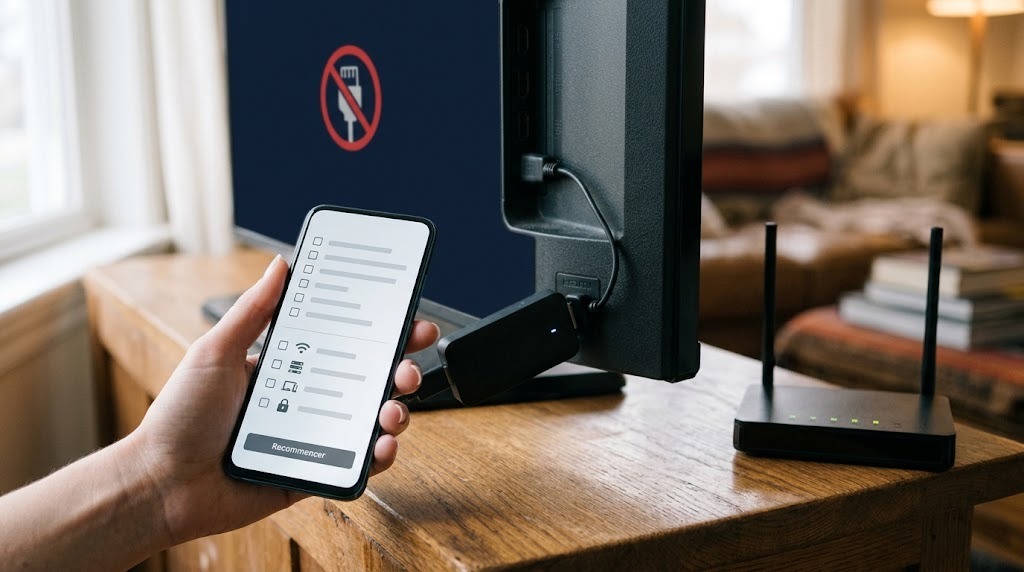
In summary: First, check your login credentials (port, capital letters, spaces) and the expiration date, then update the app, clear its cache, and recreate the profile. If the image freezes, check your network connection. Finally, test your login credentials on another device to determine whether the problem is with the subscription or the device.
IPTV Smarters Pro isn't working: identifying the problem
| Symptom | Probable cause | Solution |
|---|---|---|
| Error message upon login | Login or Subscription | Solutions 1 through 3 |
| Empty channel list | Profile or cache | Solutions 4 and 5 |
| Image Freezes | Network | Solutions 6 and 7 |
| Empty Program Guide | Time or EPG | Solution 8 |
| App that crashes | Version or device | Solutions 9 and 10 |
1. Check the server address and port
The server address must be copied exactly as shown, with http:// at the beginning and the port number at the end, for example: 8080. Without the port number, the connection will be rejected. Do not add anything after the port number.
2. Check for capital letters and spaces
Usernames and passwords are case-sensitive. Even a hidden space added when copying and pasting is enough to cause a login failure. Clear the fields and re-enter your information.
3. Check the due date and the number of screens
An expired subscription will be rejected. Check its expiration date. If you’re unable to log in on one device but can log in on another, the limit on the number of simultaneous devices may have been reached: close the app on the other devices.
4. Clear the app's cache
On Android, set-top boxes, and Firesticks, go to Settings, select the "Apps" section, open IPTV Smarters Pro, and clear its cache. Do not clear the data, or you'll have to re-enter your login credentials.
5. Delete and recreate the profile
If the list remains empty, delete the profile in the app and recreate it with the same credentials. This forces a complete reload of the catalog.
6. Improve the connection
A frozen image is almost always caused by the network. Allow 10 to 12 Mbps per screen in FHD and 25 Mbps in 4K. Test your connection speed from the playback device using a service like Fast.com, plug in an Ethernet cable or switch to 5 GHz Wi-Fi.
7. Restart the router and the device
A box that has been on for weeks will eventually start to slow down. Turn it off for a minute, restart the player, and then relaunch the app.
8. Fix the program guide
If the guide is empty, make sure the device's date and time are set to automatic, then update the guide in the app's settings and wait a few minutes.
9. Update IPTV Smarters Pro
An older version may crash or fail to connect. Update the app from your device's app store, or reinstall the latest version if you originally installed it using Downloader.
10. Test on another device
This is the decisive test. Enter the same login credentials on your phone—preferably using 4G.
| Result | Conclusion |
|---|---|
| It works on the phone | Is the problem with the device or its network? |
| It doesn't work anywhere | The problem is with the login credentials or the subscription |
Issues Specific to Each Device
- Smart TV : If the app is slow, the TV might be too old. Our guide IPTV Smarters Pro Smart TV offers solutions.
- Android Box : Make sure that installation from Downloader is allowed. See Set Up IPTV Smarters Pro on an Android Box.
- Firestick : Clear the cache and restart the USB drive once a week.
- iPhone and iPad : Use Smarters Player Lite, the sister app available on the App Store.
When to Contact Support
If IPTV Smarters Pro still isn't working after these ten checks, contact support and provide the device model, the exact error message, and what you've already tried. With this information, you'll receive a quick response.
Key Takeaways
If IPTV Smarters Pro isn't working, follow these steps in order: login credentials, subscription, cache, profile, network, guide, update, other device. These ten steps resolve the vast majority of issues in just a few minutes.
Our Offers IPTV Smarters Pro are ready to use, and our 24-hour free trial lets you check that everything is working on your device. To fully understand the app, read What is Smarters Pro IPTV?.
Frequently Asked Questions
Why is IPTV Smarters Pro rejecting my connection?
Most often due to an error in the server address, a missing port number, a typo involving uppercase letters, or an expired subscription.
Why is the channel list empty?
The profile was loaded incorrectly. Clear the app's cache, then delete and recreate the profile using the same credentials.
Why does the image freeze on IPTV Smarters Pro?
Most often, this is due to Wi-Fi. Switch to an Ethernet connection or 5 GHz Wi-Fi, restart the router, and pause any other downloads.
How do I fix the TV guide?
Set the device's time to automatic, start the guide update in the app's settings, and wait a few minutes.
Do I need to reinstall IPTV Smarters Pro?
Only as a last resort. Start by clearing the cache, recreating the profile, and updating the app.
Does IPTV Smarters Pro work on the iPhone?
On iPhone and iPad, use Smarters Player Lite, the app from the same publisher available on the App Store. Your login credentials are entered the same way there.